
Getting Started
The Content Management Center is an app of the Intershop Administration Portal and is focused on managing the content of your online shop.
Its only module, the Design View, provides a graphical interface for directly managing and editing your online shop’s content. You can instantly preview changes as you make them. The Design View allows you to move components, replace images, update data, assign components to specific customers, control their visibility, and perform other content editing tasks.
This user manual is divided into the following chapters:- Getting Started
This section provides general information about the Content Management Center. Moreover, it covers the topics of accessing and navigating an online shop in the Design View.
- Content Editing
This section covers content editing in the Design View by providing step-by-step instructions and practical use cases.
- Component Sharing
This section describes how to customize shared content and revert local changes.
- Glossary
This section provides a glossary explaining terms used throughout the application and its modules.
Accessing Your Online Shop
-
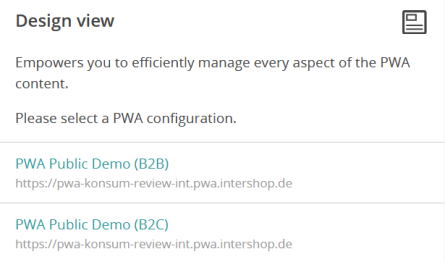
Select a Shop.
Start by choosing the online shop you want to edit from the available list.
-
Connect to Intershop Commerce Management using your ICM credentials or via a configured SSO identity provider.
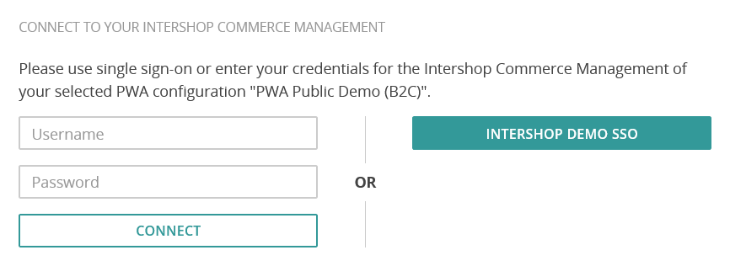
This ensures that only authorized users can edit the content.
Once logged in, you will see your shop in the Design View, including:-
The name of the selected shop
-
The current time for which the content is being edited
-
The language for which the content is being edited
-
Navigation
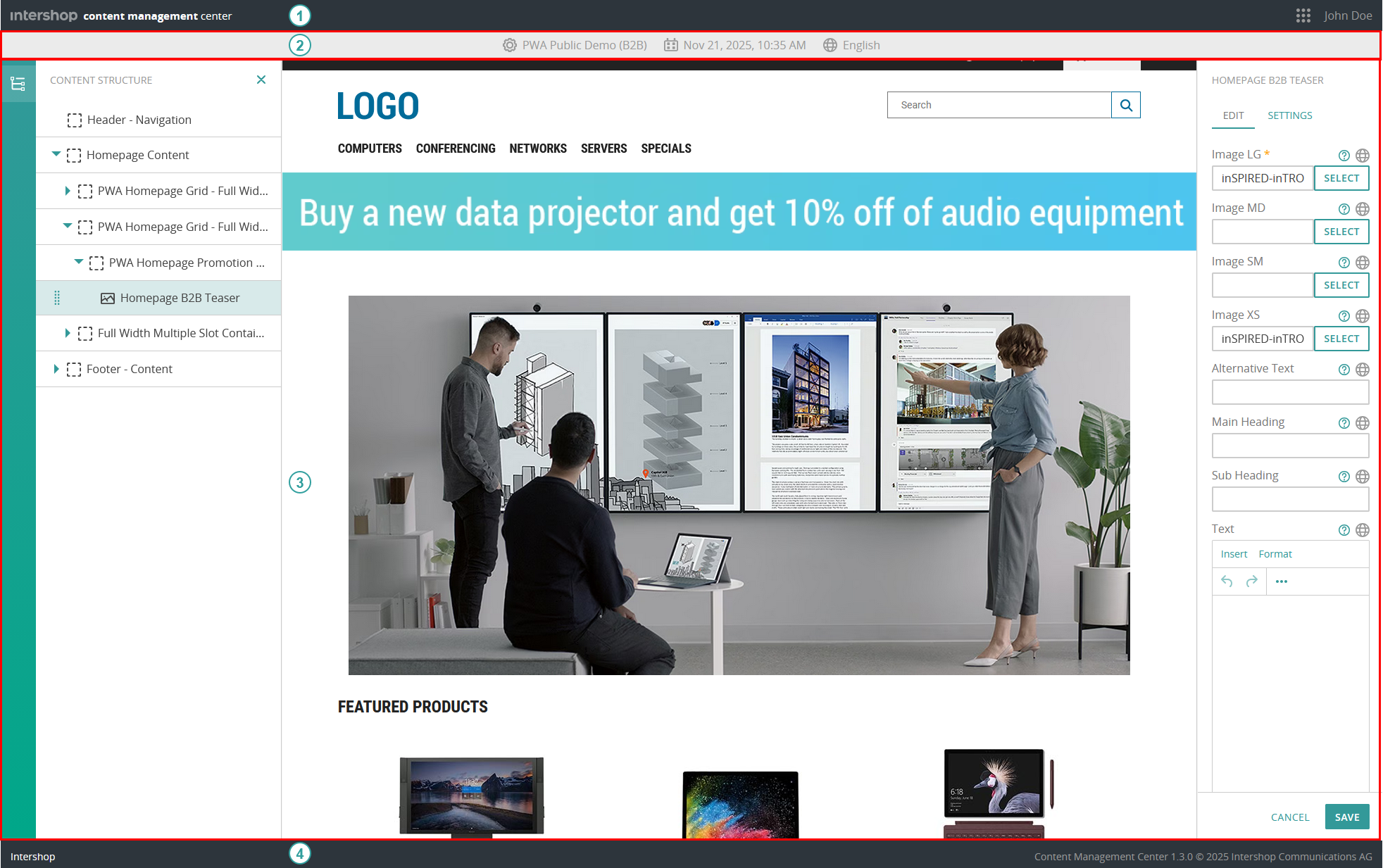
The Intershop Content Management Center user interface is divided into four major areas: the header, the second header, the main content area, and the footer.
-
Header
The header section provides several key functionalities:
- Active app name:
Displays the name of the currently active app next to the Intershop logo. Clicking on this serves as a home button, returning you to the welcome page.
- ICM connection details:
Shows which ICM user is currently logged in. Clicking Disconnect removes the connection to ICM. This does not end the session in the Content Management Center.
- App switch:
Clicking the App Switch icon (
 ) displays all apps you are assigned to and allows to switch between apps.
 User menu:
The user menu opens when clicking the username in the header.
Clicking Help opens the user manual in a new tab.Clicking Log out ends your session.
- Active app name:
-
Second header
The second header displays the name of the selected Progressive Web App and a back button to return to the PWA selection. It also lets you preview the PWA in a specific context based on the selected date, time, and customer segment. You can also open the PWA externally using the selected preview context, which allows you to share the link.
-
Main content area
The interface is divided into three main sections to support efficient content management and editing.
- Content structure panel (on the left):
Displays the hierarchical structure of the Progressive Web App, allowing you to navigate between components.
Clicking the Menu icon ( ) displays the options to:
- Collapse all
- Expand all
- Show slot levels: Displays the slots of individual components, allowing you to view the content structure in more detail and manage it via drag-and-drop. This is especially useful for components with multiple slots.
- Content display (middle area):Shows the currently selected page and its visible content for review and editing.Note:You can freely navigate through the shop’s pages to find exactly the one you want to edit. The interface reflects the structure of your online shop.
- Component editor panel (on the right):
Allows you to view and modify the properties of the selected component within the page.
- Content structure panel (on the left):
- Footer
The footer displays version information of the app and the name of the tenant through which you are currently logged in.